You hit generate. It worked. The timetable looks good — but one period catches your eye. Maybe Mr. Sharma's Math class landed on Wednesday afternoon when Tuesday morning would be better. Maybe you'd prefer Art in Grade 6 to be on Friday instead of Monday. A small thing. One cell out of hundreds.
Until now, your only option was to regenerate and hope the random ordering produced something closer to what you wanted. That's a blunt tool for a precise problem.
Now you can just move the period directly.
The Idea
A timetable is a balance of constraints. The generator finds a valid arrangement — no teacher clashes, no subject running over its daily limit, no grade getting double-booked. But "valid" and "ideal" aren't the same thing. There's almost always a version the generator produced that you'd tweak if you could.
Manual Period Swap is that tweak. It lets you move a single generated period to another slot — provided the move keeps the timetable valid. The system does the constraint-checking for you; you just point at what you want.
Think of it like editing a photo after the camera takes the shot. The generation is the exposure. The swap is the fine adjustment before you print.
How It Works
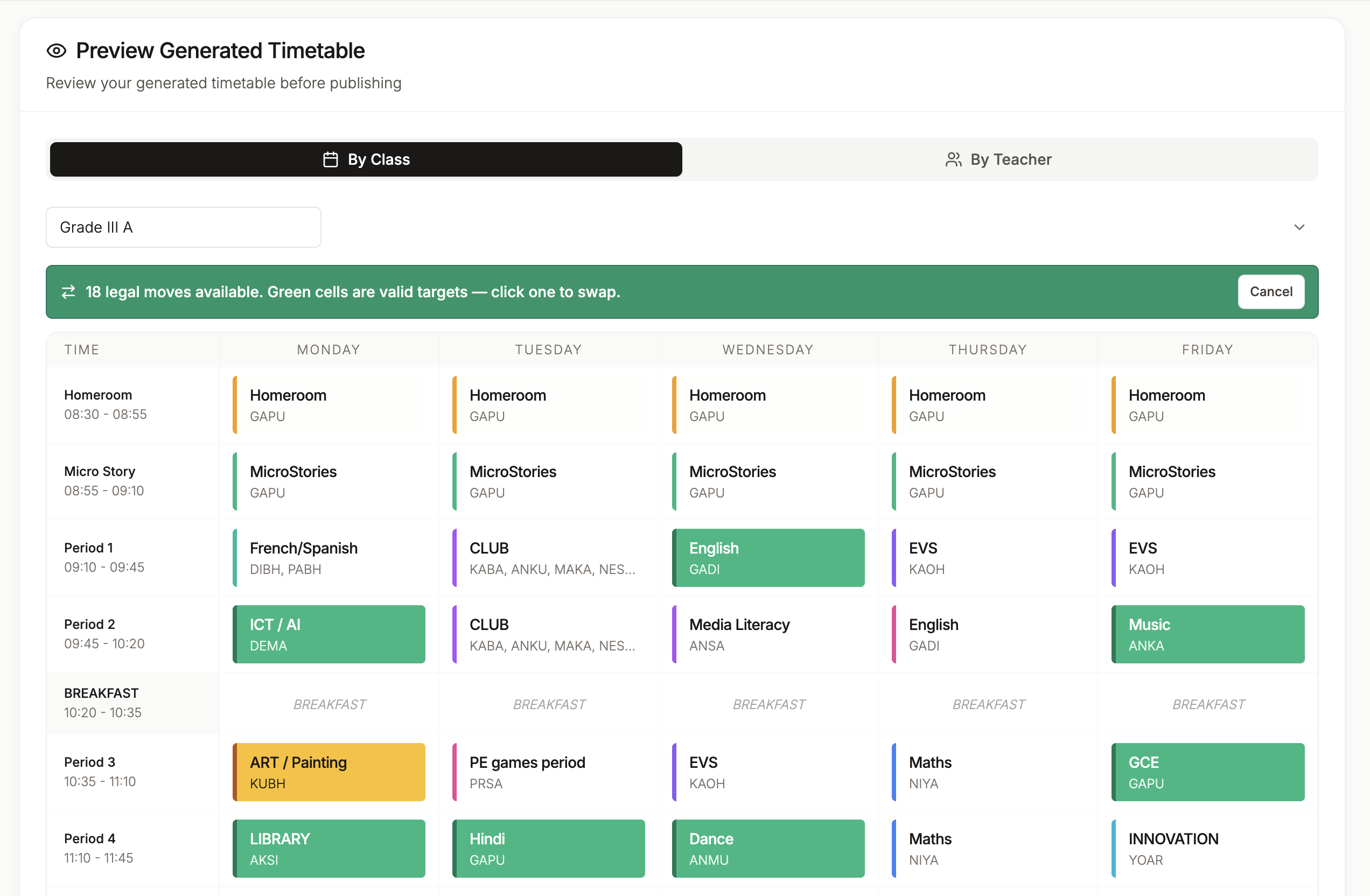
Open the Preview tab after generation completes. Pick a grade to view. You'll see the weekly timetable — days across the top, periods down the side, each cell showing a subject and teacher.
Now the interesting part:
-
Click any generated period cell. The cell turns amber. That's your selected source.
-
Watch the grid. The system evaluates every other cell in the week and highlights valid swap destinations in green. These are the slots where moving your selected period would not create a conflict.
-
Click a green cell. A confirmation dialog appears showing exactly what's about to happen — which subject/teacher moves from where to where, in exchange for what.
-
Confirm. The swap persists to the preview immediately. The grid updates. Your change is saved.
-
When you're happy with everything, hit Publish. Until you publish, the swaps live in the staged preview only. Nothing on your published timetable changes until you say so.
Quick tip: If you click a cell and don't see any green targets, it means there's no legal move for that period — every other slot would create a conflict. That's a signal the current placement might actually be the only workable arrangement for that teacher and subject combination.
What Makes a Target Legal?
The green highlights aren't arbitrary. The system checks three things for each candidate destination:
-
Teacher availability. The teacher whose period you're moving must be free at the destination slot. If they're already teaching another grade in that slot, the destination isn't green.
-
Daily subject limits. If Math is capped at 2 periods per day for a grade, the system won't let you swap in a way that puts Math in that grade 3 times on a single day.
-
Same grade section only. Swaps happen within one grade section at a time. You can't move a Grade 6A period over to Grade 6B in the same click.
If a slot fails any of these checks, it stays neutral — no green highlight. You never have to worry about breaking the timetable. If a cell lights up green, the swap is safe to make.
What's Locked (and Why)
Not every cell can be swapped. Three types are intentionally locked:
Pre-assignments
If you've pre-assigned a subject to a specific slot (Fixed Schedule, Flexible, Team Teaching), that slot is locked on the preview. Pre-assignments exist precisely because you wanted that subject at that time — moving it through a manual swap would defeat the purpose. To change a pre-assignment, go to the Pre-Assignments page and edit it there.
Homeroom / Class Teacher periods
The first period of each day is reserved for the class teacher. Whether it's filled with Homeroom or with one of the class teacher's own subjects, that slot is part of a pattern that applies across the entire week for the grade. Swapping it individually would break the pattern.
Group subjects
Group subjects (like senior electives where Physics, Commerce, and Arts run in parallel) are coordinated across multiple grades and teachers. A single cell in one grade is part of a larger arrangement, and moving it in isolation would break the coordination.
If you click a locked cell, you'll see a small "locked" hint instead of green highlights. That's the system telling you: this one's not editable here, but you can adjust it through the appropriate configuration page.
The Philosophy
The original design principle of TimeIt360 was: let the generator do the heavy lifting. Don't let users drag-and-drop their way into broken timetables. No manual overrides that would create conflicts.
That principle hasn't changed. The Manual Period Swap isn't an escape hatch from the generator — it's a refinement step that builds on it. Every swap the system offers is one the generator would accept as valid. You can't create a conflict, because the system won't let you.
What's new is the granularity. Before, your smallest unit of change was "regenerate the whole thing." Now it's "move one period." The rest of the timetable stays put.
When to Use It
Some cases where a swap is genuinely useful:
-
A teacher has a personal preference that the generator didn't happen to match. Maybe they prefer afternoon Math over morning Math. One swap, done.
-
Back-to-back periods that would be better separated (or vice versa). The generator respects daily limits, but it doesn't know that you'd rather not have two Science periods both on Wednesday.
-
A small pattern you want across the week. You noticed Grade 8's PE is on Mon/Wed/Fri and you'd prefer Tue/Thu. Three swaps.
-
A single cell just feels off and you'd rather try one adjustment before regenerating.
When Not to Use It
If you find yourself wanting to make 15 or 20 swaps on a single grade, that's usually a signal that regenerating is faster. The generator is good at finding workable arrangements. Manual swapping is for the last 1 to 5 percent, not for wholesale restructuring.
If the thing bothering you is structural — a teacher is overloaded, a subject group has conflicts, a grade has too many periods — no amount of swapping will fix that. Swaps only work within the constraints the system already validated. For structural issues, adjust teacher assignments or subject configuration and regenerate.
Summary
Manual Period Swap is a focused editing tool for the final polish, not a substitute for good setup. Click a generated cell, see where it can legally go, click a target, confirm. Nothing goes live until you publish.
The generator still does the hard work. You just get the last word.
Have questions? Reach out to us at support@kvalabs.com or use the chat assistant inside TimeIt360.