Most timetable tools let you hit generate and find out later whether it worked. If it failed, you'd squint at an error message, guess which grade caused the problem, and try again.
We wanted something better. Something that would tell you — before you even press the button — which grades are ready, which aren't, and exactly what needs attention.
That's what the Readiness tab is for.
The Idea
A pilot doesn't just jump in the cockpit and start flying. They run through a pre-flight checklist: fuel levels, controls, warning lights, weather. It takes a few minutes, and it catches the small things that would have caused big problems in the air.
Your timetable deserves the same treatment. Most generation failures aren't mysterious — they're caused by three or four specific things that can be spotted in advance. A teacher missing from a subject assignment. A grade with more periods allocated than the bell schedule actually has slots for. An unused subject group. Small gaps. Easy to miss, easy to fix, and catastrophic if they sneak through.
The Readiness tab runs the same check the generator runs internally, but surfaces the results in a form you can scan.
How to Read It
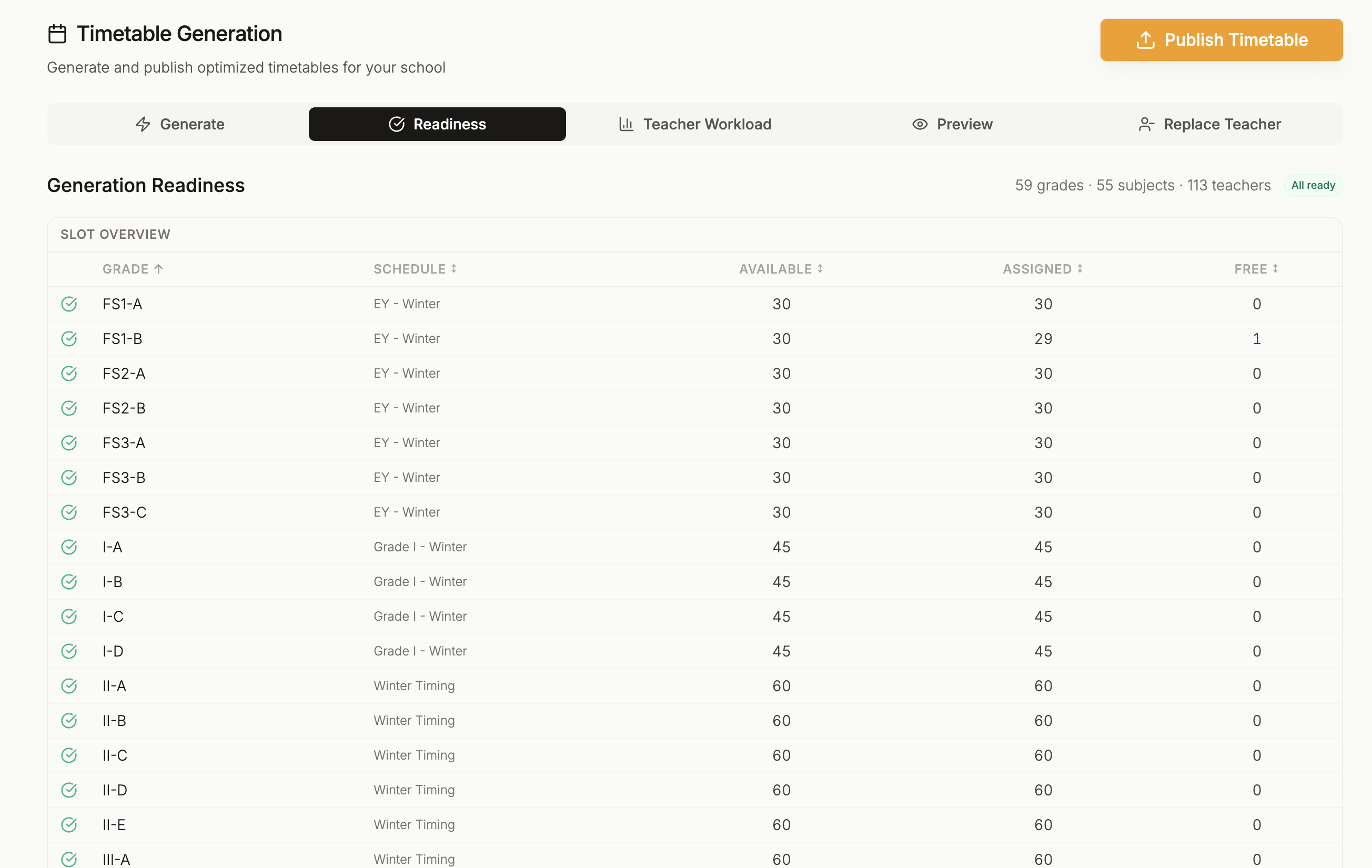
Open the Timetable page and switch to the Readiness tab. The first thing you'll see is the overall status:
- Green "All ready" — every grade has what it needs. You're good to generate.
- Red "X missing across Y grades" — something specific is missing. The badge tells you exactly how many things, across how many grades.
Below that, a summary: how many grades, subjects, and teachers you have configured.
Then comes the Slot Overview table. Every grade, one row each, showing:
- Schedule — which bell timings the grade uses
- Available — total periods in the week (based on the schedule)
- Assigned — periods you've actually allocated to subjects
- Free — periods still unaccounted for
Each row has a status icon:
- Green check — 0 to 2 free periods. Everything fits nicely.
- Amber triangle — 3 to 4 free periods. Slightly under-scheduled but will still generate.
- Red X — 5 or more free periods, or the grade is over-scheduled (more subjects than slots), or it has no subjects assigned at all.
Quick tip: Click any column header to sort. Sorting by Free (descending) is the fastest way to spot the grades that need the most attention.
The Details Per Grade
Click any grade row and it expands. Now you can see exactly what's going on inside.
You'll see three small tables:
-
Subjects — each subject required for the grade, how many periods per week it needs, and who's teaching it. If a subject has no teacher assigned, it shows a red X next to it. That's the thing to fix.
-
Subject Groups — any group subjects the grade participates in (like electives), with the teachers covering each. If a teacher assignment is missing anywhere in the group, the row flags it.
-
Pre-Assignments — any slots you've locked in advance (Team Teaching, Fixed Schedule, Class Teacher periods). Each one shows its type as a coloured badge, so you can see at a glance what's reserved.
Grades with issues auto-expand when the tab loads. You don't have to go hunting for them — they reveal themselves.
What It Catches
Here's what the Readiness tab is especially good at surfacing before generation:
Missing teacher assignments
You've added a subject to a grade but forgotten to assign a teacher. Easy to miss when you have 30 grades and 50 subjects. The Readiness tab flags each one with a red X and tells you exactly which subject in which grade is missing a teacher.
Over-scheduled grades
Your bell schedule has 40 slots a week. You've allocated 45 periods of subjects. That math doesn't work — no amount of generation cleverness can fit 45 things into 40 places. The overall badge flags this immediately, and the Slot Overview shows the grade in red.
Common mistake: Adding a new subject without reducing periods somewhere else to make room. The system will let you do it, but the Readiness tab will catch it before you waste a generation attempt.
Under-utilised grades
A grade with 8 free periods out of 40 isn't broken — it'll generate — but it's probably not what you wanted. Maybe you forgot to assign periods for a subject. Maybe a subject got removed accidentally. The amber triangle nudges you to double-check.
Unused subject groups
You set up a subject group for senior school electives, but no grade is actually using it. Not an error, but worth knowing about. The school-level issues alert at the top of the tab flags this.
Grades with no bell schedule
A grade can't generate without a bell schedule. If you forgot to assign one, the Slot Overview shows a red "No schedule" flag right in the grade's row.
Using It as Part of Your Flow
The Readiness tab isn't a one-time setup check — it's worth opening every time before you generate, especially after you've made changes.
A useful habit:
- Make your changes (add teachers, adjust assignments, create pre-assignments)
- Switch to Readiness
- Scan the Slot Overview — sort by Free if needed
- Expand any red or amber rows to see the specifics
- Fix what needs fixing
- Generate
Five minutes of review saves you from a failed generation that would have cost you more time to diagnose after the fact.
A Note on Amber vs Red
Amber means "will still generate, but might not be what you intended." Red means "fix this first."
You don't have to make every grade green before generating — a couple of amber rows are completely fine. But a red row is a signal to stop and look. The generator will either fail on that grade, or produce something that doesn't match what you wanted.
Summary
Generation failures are almost always caused by specific, identifiable things: missing teachers, mismatched period counts, broken schedules. The Readiness tab surfaces all of them before you generate, in a table you can scan in thirty seconds.
Think of it as your pre-flight check. A few minutes here saves hours of back-and-forth later.
Have questions? Reach out to us at support@kvalabs.com or use the chat assistant inside TimeIt360.